The Power BI Decomposition Tree Guide for Data Analysis

I was recently teaching someone how to use the decomposition tree in Power BI and it clicked that this topic would make for a great video lesson. What I love about the decomposition tree is that it enables data analysts to conduct root cause analyses, identify patterns and discover insights that are not readily apparent. For example, if we want to understand the contributing factors to our small business profits based upon the data at hand, this visual fits the need to a tee.

Specifically, the decomposition tree lets you visualize data across multiple dimensions and enables drilling down into your dimensions in any order. As a bonus, it’s also an artificial intelligence (i.e., A.I.) visualization, so you can ask it to find the next dimension to drill down into based on certain criteria.

This A.I. also had the “answers”

The picture below illustrates how our Smoaking Coffee Company Profits can be subdivided by dimensions across the top of the visual. Massachusetts apparently likes their coffee (Smoaking Coffee is hypothetically better than Dunkin’).

Absolute vs Relative AI Splits

Another benefit of the decomposition tree is the ability to choose between two types of AI splits: absolute and relative. AI splits are the automatic breakdowns that Power BI suggests based on your data.

Absolute AI splits show you the highest or lowest contributors to the measure you are analyzing. In my example, if we are looking at profit by market size, the absolute AI split for high value will show us the market size that has the highest profit, in this case the Central region with $59,337 in profit.
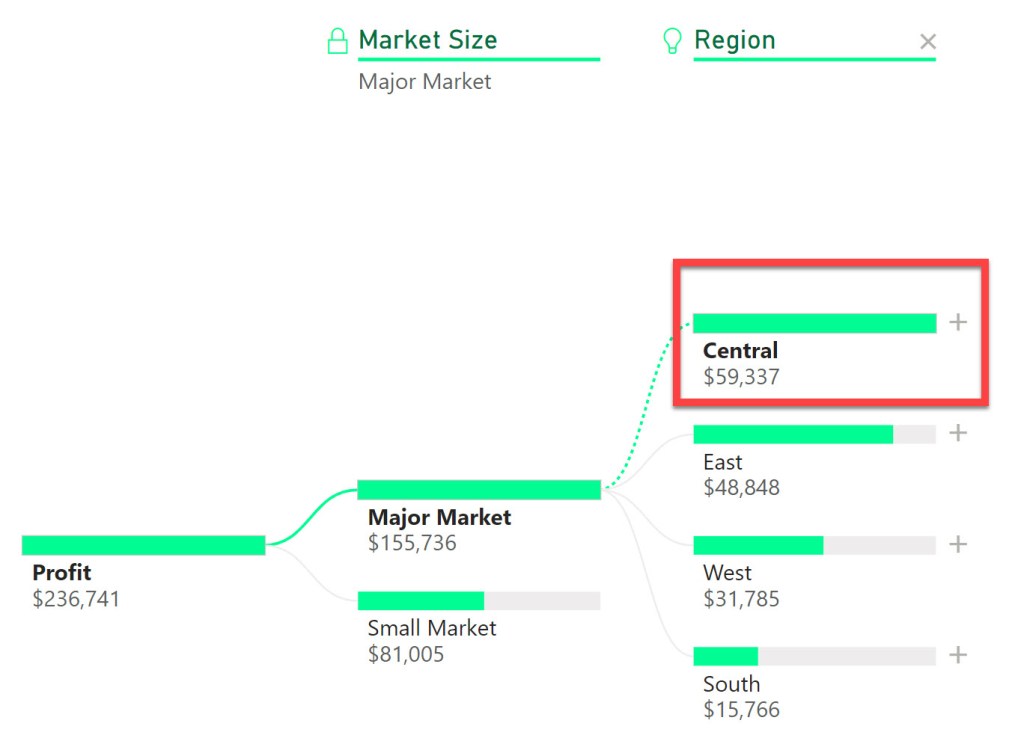
Relative AI splits shows us the most interesting or unusual contributors to the measure we are analyzing. For example, if we switch the Analysis type to Relative from Absolute and perform the same analysis, the relative AI split will show us the product category that has the highest profit compared to its expected value based on the other categories. In this instance it is the Colombian coffee with $44,131 in profit. This number is lower than the absolute value of $59,337, but relative to it’s other product peers, it stands out.

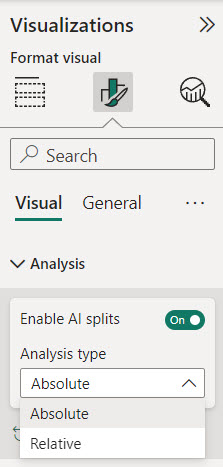
You can switch between absolute and relative AI splits by going to the format visual pane and selecting the analysis option. You can also choose whether you want to see the high or low values by clicking on the arrow next to the plus sign on the actual decomposition tree values.
Drill Through to Details

The decomposition tree is a great way to get a high-level overview of your data, but sometimes you may want to see the details behind the numbers. For example, if you are looking at profit by region, you may want to see the individual transactions that make up the profit for a specific region.

Power BI allows you to drill through to another page that shows the details of your data. To do this, you need to have a detail page that has the same measure as the one you are using in the decomposition tree. For example, if you are using profit as your measure, you need to have a detail page that has profit as well.

To drill through, you need to right-click on a node in the decomposition tree and select drill through to your detail page.

This will take you to the detail page and apply the filters based on the path you followed in the decomposition tree. For example, if you drilled through to the product value of Colombian, you will see the details of the profit transactions for products noted as Colombian.

This is a very useful feature that allows you to see the underlying data behind the summary. You can also use the back button to go back to the decomposition tree and explore other paths.

Use Bookmarks to Save and Share Your Analysis

Another cool feature of the decomposition tree is that it fully supports bookmarks. Bookmarks are a way to save and share your analysis with others. You can use bookmarks to capture the state of your report, including the filters, slicers, and visuals.

To create a bookmark, you need to go to the view tab and select bookmarks pane. Then, you need to click on the add button to create a new bookmark. You can give it a name and a description to make it easy to identify.

You can also link your bookmarks to buttons or images on your report. This way, you can create interactive scenarios that allow you to switch between different views of your data. For example, you can create a button that shows you the decomposition tree for the lowest state profit value and associated region.

To link a bookmark to a button or an image, you need to select the button or the image and go to the action option in the format shape pane. Then, you need to turn on the action and select bookmark as the type. You can then choose the bookmark that you want to link to the button or the image.

Using bookmarks, you can create dynamic and engaging reports that showcase your analysis and tell a story with your data.

Some Final Tips

Before I conclude, I want to share some final tips on how to use the decomposition tree in Power BI.

  1. You can rename your dimensions in the decomposition tree by selecting them in the Visualizations pane “Explain By” area. Simply right click on a value and select “Rename for this visual”. This can help you to customize the labels and make them more meaningful.
  2. You can lock the values in the decomposition tree by selecting the area to the left of the dimension name at the top of the decomposition tree visual (select the light bulb if the dimension was placed in the visual by AI). This will prevent the users from changing the nodes or the AI splits. This can be useful if you want to fix the analysis and avoid confusion.
  3. The maximum number of levels and data points that can be displayed in the decomposition tree are 50 levels and 5000 data points. I hope you never get to that point, however if you’re at that point, just start over; your visual is way too cluttered.

Conclusion

Watch the video to understand how you can use the decomposition tree in Power BI to analyze your data and conduct root cause analyses.

Yes I did get carried away with AI in the thumbnail picture for this video. I was always a fan of the John Stewart version of Green Lantern so I had to play around with AI to get a close approximation of me as a Lantern. May the decomposition tree work for you in brightest day and darkest night!!

I appreciate everyone who has supported this blog and my YouTube channel via merch. Please check out the logo shop here.

If you want to learn all the latest tips and tricks in core data analysis tools, stay in contact with me through my various social media presences.

And don’t forget to subscribe to my YouTube channel for more data analyst tips and tricks.

Join my YouTube channel to get access to perks:
https://www.youtube.com/channel/UCL2ls5uXExB4p6_aZF2rUyg/join

Anthony B Smoak

Add Total Values for Stacked Column and Stacked Bar Charts in Excel

This is the only video you need to learn how to add add totals to stacked bar charts and stacked column charts in Excel. Make sure to watch the video because I have you covered both ways.

I’m more of a video explanation person, so make sure to watch the video so the steps are clearer. Then refer to the bulleted steps as reference once you have the initial basic understanding.

The Keys to Adding Totals to the Stacked Column Chart Above:

  • Add a “Grand Total” column to your data
  • Highlight your data not including the “Grand Total” column
  • On the “Insert” menu select a “2-D Stacked Column” chart
  • Select “Switch Row/Column” as necessary so your first data column is listed on the X axis
  • Select the chart and then expand the data range to include the “Grand Total” column
    • Add “Data Labels” to the Grand Total series on the chart
  • Right click on the Grand Total and “Change Series Chart Type”, the viz becomes a “Combo” chart
  • Change the “Grand Total” series chart type to a “Line”, while leaving all others as a “Stacked Column”
  • Format the line’s data label, changing the Label Position to “Above”
  • Select the line, format the data series and change the “Line” option to “No Line” in order to leave only the totals and hide the line.

The Keys to Adding Totals to the Stacked Bar Chart Above:

  • Add both “Grand Total” and “Spacing” columns to your data
    • Highlight your data including the “Spacing” column but not including the “Grand Total” column
      • The “Spacing” column should have a value of 0 at this point
    • On the “Insert” menu select a “2-D Stacked Bar Chart”
    • Select “Switch Row/Column” as necessary so the “Spacing” values are not listed as an option on the Y axis
    • Change the “Spacing” column values to a number (e.g., 1000) big enough to make a new category visible on the stacked bar chart
    • Right click to “Format Data Labels” and change the “Label Options” to “Value from Cells”
      • In the “Select Data Label Range” pop up box, highlight the values from the “Grand Total” column
      • Change the “Label Position” to “Inside Base”
    • On the chart select the Grand Total Series and right click so the “Fill” option appears
      • Change the “Fill” to “No Fill”
    • Change the values in the “Spacing” column to 0
    • Delete the “Grand Total” entry from the Legend

You can thank me by liking and subscribing to my YouTube Channel

All views and opinions are solely my own and do NOT necessarily reflect those of my employer.

Do Great Things with Your Data

– Anthony B. Smoak

shop.spreadshirt.com/AnthonySmoak

Join my YouTube channel to get access to perks:
https://www.youtube.com/channel/UCL2ls5uXExB4p6_aZF2rUyg/join

How to Extract Web Data with Power BI

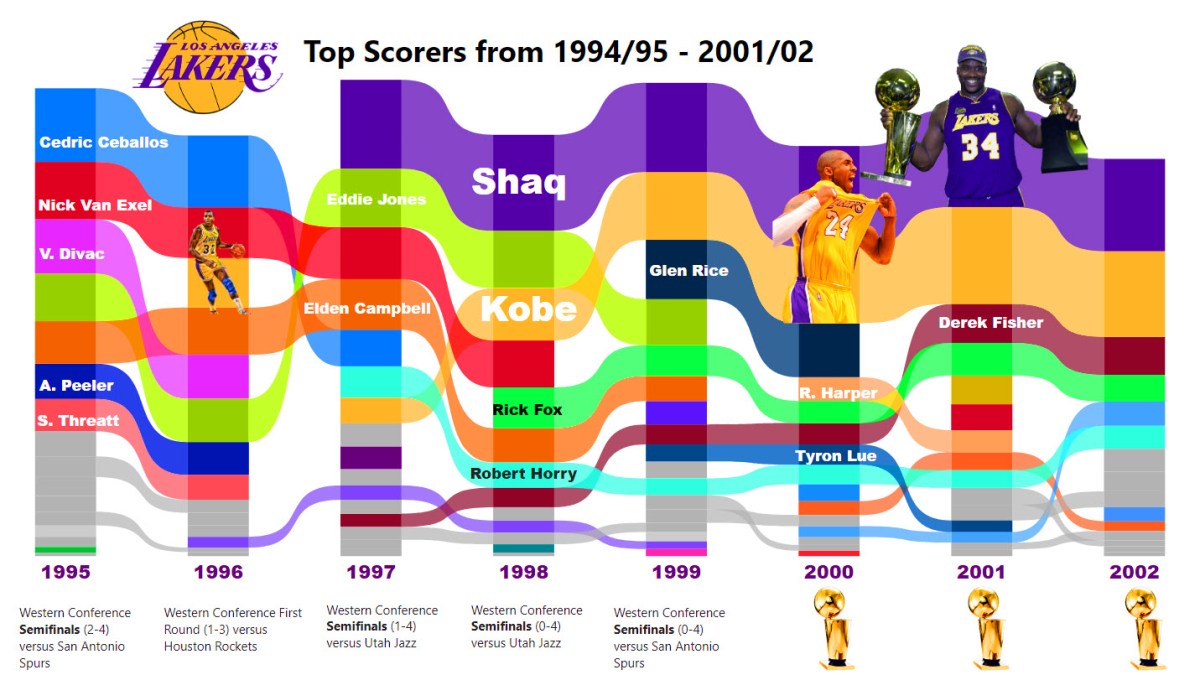
By now you’ve probably heard that the Los Angeles Lakers were a pretty solid dynasty in the latter half of the 90’s. I was never a Michael Jordan and Bulls fan during their reign of terror in the 90’s. It all started with the Bulls first title at the expense of Lakers’ fans back in 1991.

So while I must admit that “The Last Dance” was a well executed documentary focused on a team I didn’t care for, it did evoke nostalgia for the 90’s.

Kobe Shaq

Although we suffering Lakers’ fans had to wait our turn, we did get the last laugh as “The Next Dance” revolved around a young Kobe Bryant and prime era Shaquille O’Neil.

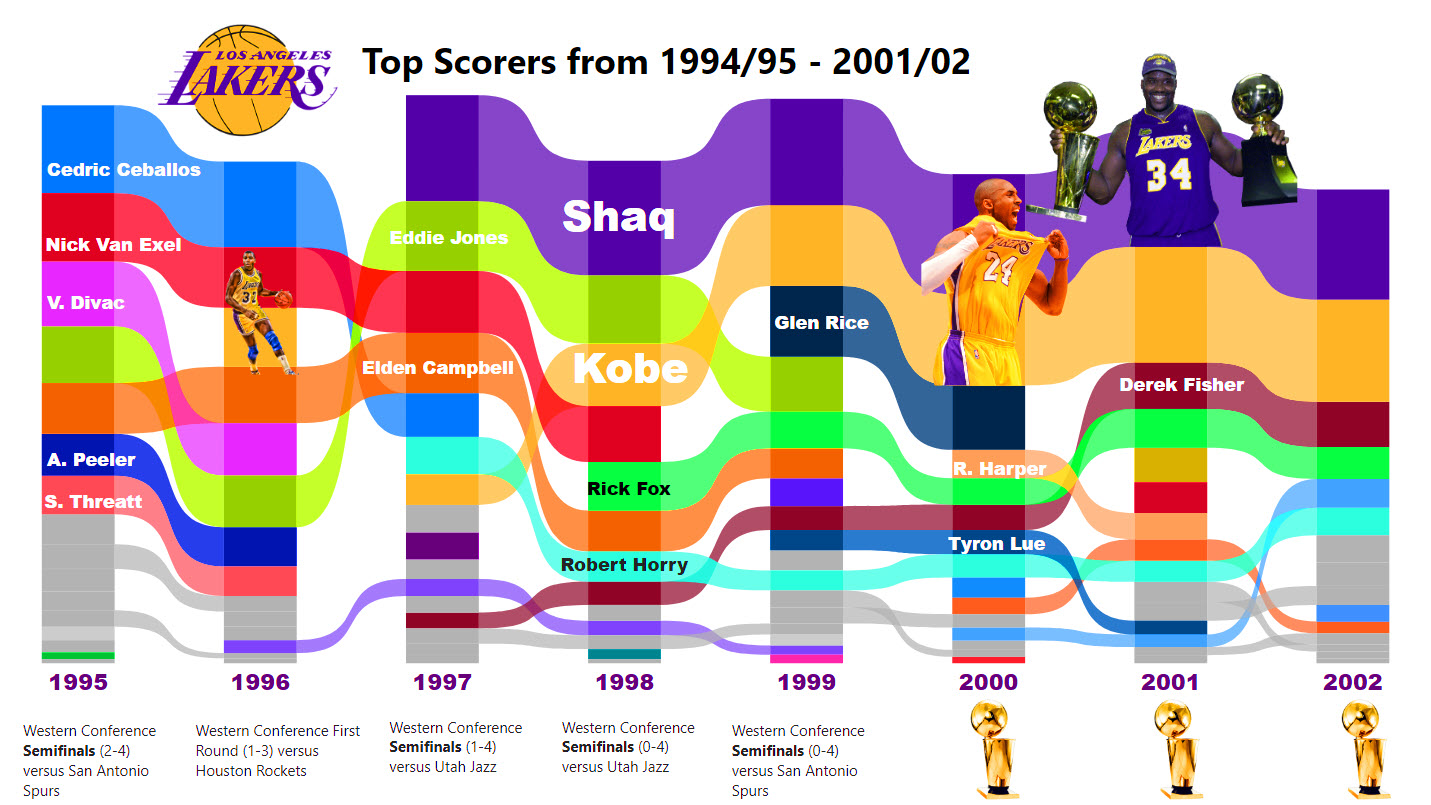
I built a ribbon chart visualization in Power BI showcasing the top scorers from 1995 to the three peat years ending in 2002. Thank you Spencer Baucke for the ingenious web scraping technique!

Lakers Ribbon Chart Thumbnail

Follow along in the video and make a ribbon chart for your favorite NBA team.

As always, do great things with your data.

Anthony B. Smoak, CBIP

Inspiration ► https://bit.ly/2WZFWCA

If you find this type of instruction valuable make sure to subscribe to my Youtube channel.

Check out other Power BI videos of interest definitely worth your time:

All views and opinions are solely my own and do not necessarily reflect those of my employer.

Kobe & Shaq Image: David Sherman / NBAE via Getty Images file

Build a Power BI Pop Out Slicer

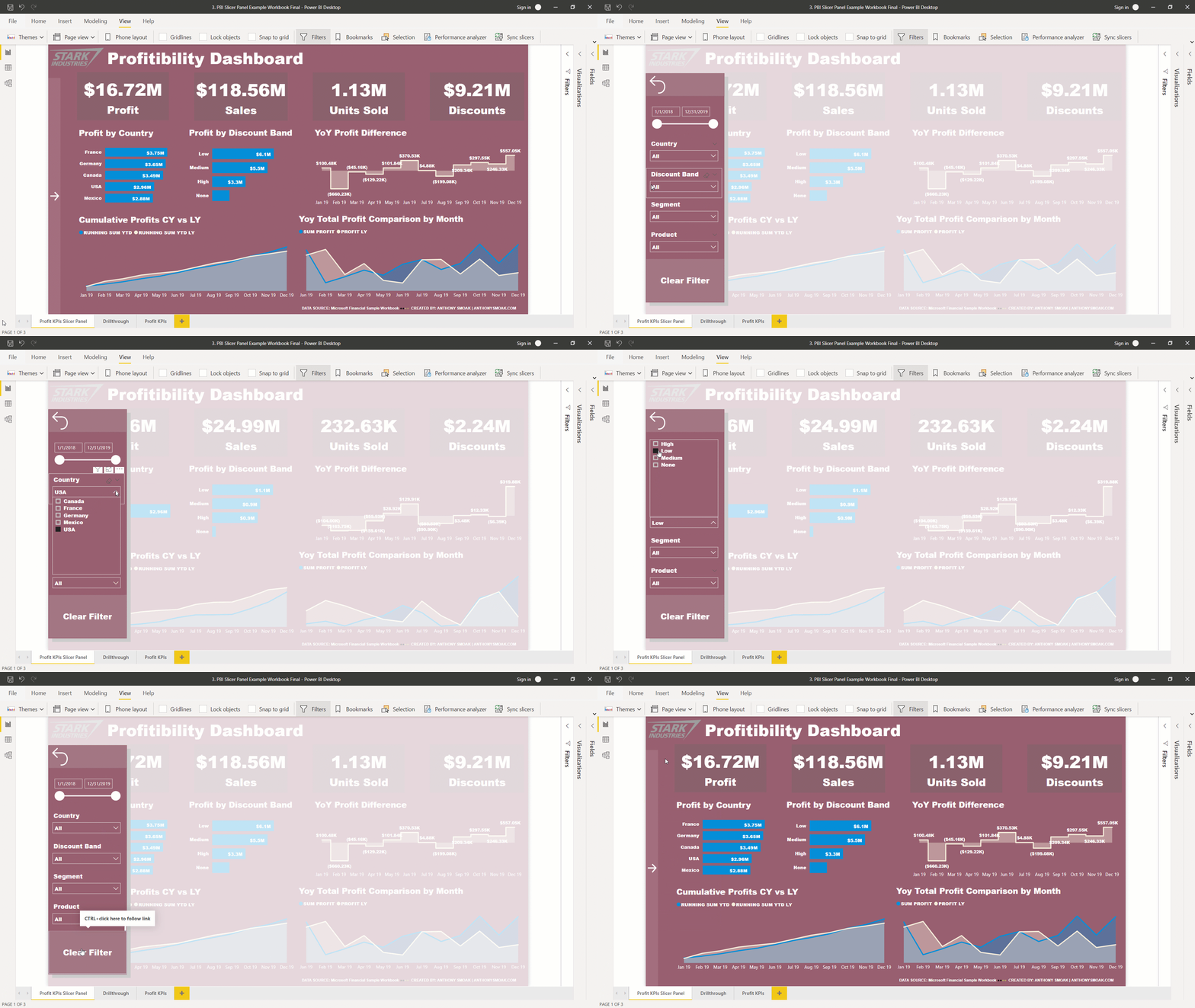
Save more screen for your team! The pop out slicer panel is a perfect way to conserve space while building out your dashboard (i.e., reports) in Power BI desktop. It really is a slick feature that allows you to conserve limited reporting space by hiding your slicers until the user presses a button to reveal your data filtering options.

In this video you can watch me build out the slicer panel step by step using bookmarks, selection panel and buttons.

Power BI Pop Out Slicer (Short GIF)

  • Bookmarks are a configured view of a report page, including filters, slicers, and the state of visuals.
  • The selection panel allows you to show and hide current objects on the current report page.
  • Buttons enable users to hover, click, and further interact with Power BI content

The data sample used for this tutorial is here: https://docs.microsoft.com/en-us/power-bi/sample-financial-download

As always, do great things with your data.

Anthony B. Smoak, CBIP

If you find this type of instruction valuable make sure to subscribe to my Youtube channel.

Check out other Power BI videos of interest definitely worth your time:

All views and opinions are solely my own and do not necessarily reflect those of my employer.

Join my YouTube channel to get access to perks:
https://www.youtube.com/channel/UCL2ls5uXExB4p6_aZF2rUyg/join

How to Drill Through in Power BI

One of the great options available in Power BI is the capability to “drill through” to another report page. In this manner you can focus on a particular entity such as a customer, internal division, supplier or any other dimension of importance.

Different users have different data needs. When designing a dashboard typically the Key Performance Indicators (KPIs) are aggregated at a high level on the initial visualization. This offers executives and management types a “bird’s eye view” of performance.

Personally, I am a fan of BANs (look up the term in a dashboard design context if you are not familiar) when I want to highlight key takeaways.

BANs

Subsequent lower level dashboard pages can offer analysts and others the ability to either explore data with additional interactivity or simply display a static detailed report. The point is to start at a high level and allow your user to drill to a more granular level of data.

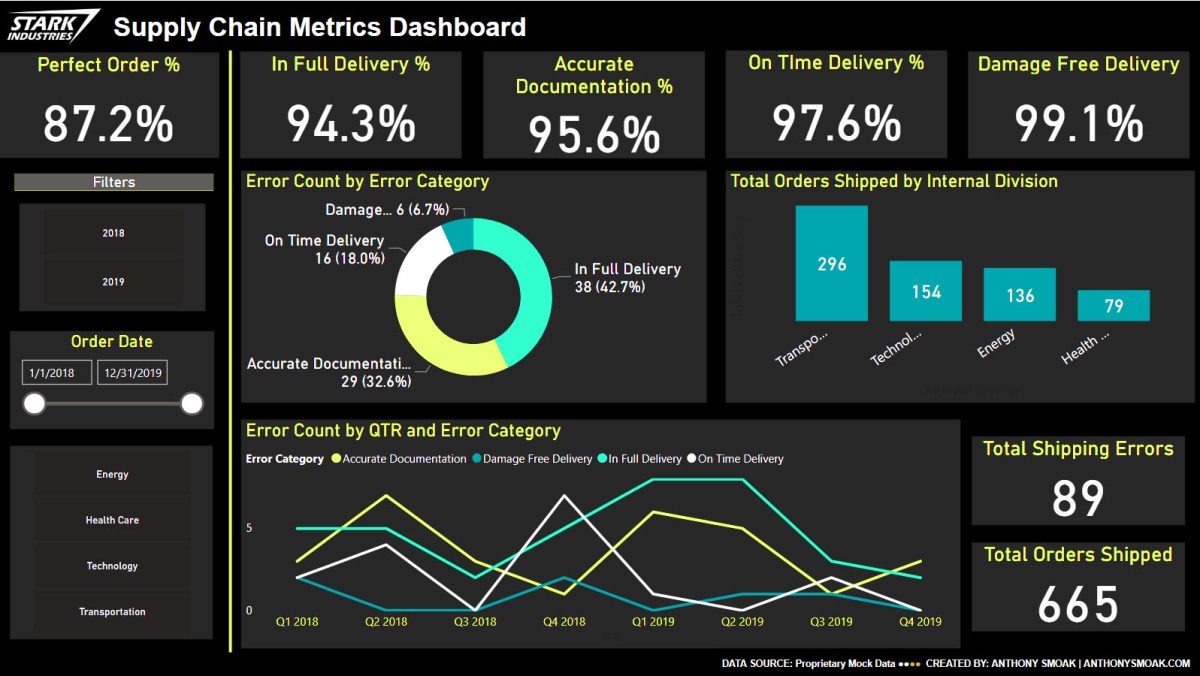
In this video I demonstrate the use of the drill through functionality in Power BI. In this scenario, you are the Chief Supply Chain officer trying to gauge your Perfect Order Percentage KPI for several internal divisions. When it’s time to sit down with your four division mangers to discuss their performance on this metric, you want the ability to start at a high level and then drill through to a static report based upon their respective internal divisions or on a specific shipping error.

DrillThrough

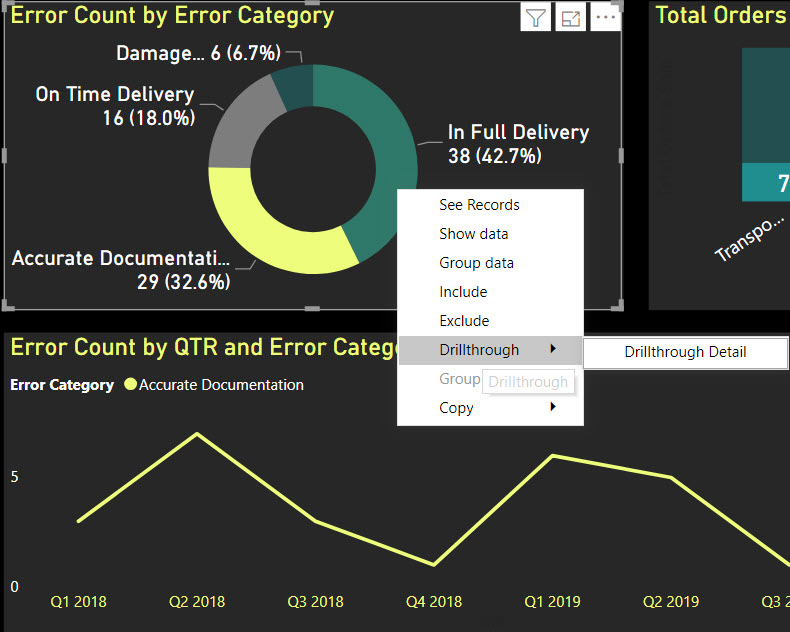
Drill through on “In Full Delivery” error category

Do not try and cram every visualization, chart, table or gauge under the sun into a dashboard! Take advantage of drill through functionality and tailor your data presentation for specific user groups. This general concept applies to any data visualization tool, but if you’re using Power BI then this video will help you understand the specific steps required to enable drill through functionality.

I’m frequently questioned where I obtain mock data for my scenarios. My secret source is mockaroo.com which is a great starting point for developing test data.

As always, do great things with your data.

Anthony B. Smoak, CBIP

If you find this type of instruction valuable make sure to subscribe to my Youtube channel.

Check out other Power BI videos of interest definitely worth your time:

All views and opinions are solely my own and do NOT necessarily reflect those of my employer.

Create a Customizable Heat Map in Power BI

In this video we’ll learn how to create a customizable heat map in Power BI without using the prepackaged downloadable visual. A heat map (or heatmap) is a graphical representation of data where the individual values contained in a matrix are represented as colors. A heat map helps draw your eye to the most and least popular areas within the matrix. The cells contained within the table either contain color-coded categorical data or numerical data, that is based on a color scale.

Matrix

Wrong Matrix

I have some fun in the video with a dashboard that I constructed using a publicly available data set from Microsoft, but in the lesson we’ll create the following:

Heatmap

Make sure to watch the video, download the data set and follow along with the instructions.

If you find this type of instruction valuable make sure to subscribe to my YouTube channel.

All views and opinions are solely my own and do NOT necessarily reflect those of my employer.

How to Fix an Import Specification Error in Microsoft Access

There are certain aspects of Microsoft Access that can be downright frustrating and puzzling to debug. I want to share a tip with you that will hopefully save you hours of frustration. There is nothing more foundational than importing data into Microsoft Access so most likely you’ll appreciate the fix for this run-time error if you are attempting to use VBA.

If you encounter the following Microsoft Access Error:

“Run-Time error ‘3625’: The text file specification ‘My Saved Access Import Spec’ does not exist. You cannot import, export, or link using that specification.”

Most likely you have confused a saved set of “import steps” with a saved “Import/Export specification” while trying to use the Docmd.TransferText command; or at least I did.

Consider the following sample VBA code that uses the Docmd.TransferText command to import a delimited file (from a path stored in string variable strInputFileName) into a table named “tbl_Access_Import_Data” using an import specification.

Private Sub cmd_Import_Table_Click()

Dim strInputFileName As String
'Set Path to Local CSV File. This file will be imported into an Access Table.
strInputFileName = "C:\Users\Desktop\Access Data\Access_Import_Data"

' Use a Macro to Import a delimited file
' "My Saved Access Import Spec" = Import Spec
' "tbl_Access_Import_Data" = Destination Access Table
' strInputFileName = hardcoded path to source csv file

DoCmd.TransferText acImportDelim, "My Saved Access Import Spec", "tbl_Access_Import_Data", strInputFileName

End Sub

4. Error 3625 Edited 2

Let me show you where I went off track. I saved “import steps” and then tried to reference the saved “import steps” with the Docmd.TransferText method. You cannot reference “import steps” with this method, only “Import/Export specifications”.

1. Import Text Wizard Edited

I used the Import Text Wizard to define and delimit the columns in a specified .csv file and indicated the table I desired to have that data imported into. Afterwards, I pressed the finish button.

2. Import Text Wizard Blurred

Once I hit “Finish”, on the very next screen I saved the “import steps” that I previously defined. Notice the verbiage next to step 1 (i.e. “Save import steps”).

3. Saved Fake Spec Blurred

As you can see above, I created a saved “import step” erroneously named “My Saved Access Import Spec”. This name was the value that I erroneously passed to the Docmd.TransferText method in code.

4. Error 3625 Edited 2

These actions result in ‘Run-time error 3625’ that we will fix.

5. Import data Secification Edited

In order to save a legitimate Import/Export specification that can be successfully referenced with the Docmd.TransferText method, make sure to hit the “Advanced” button before you hit “Finish” when you come to the last window of the Import Text Wizard.

Make sure to hit “Save As” (Step 2 above) on the right hand side of the window.

6. Capture Edited

At this point, name and then save your true Import/Export specification name and hit “OK”.

Now when you come to the same window again you can hit the “Specs…” button to observe the names of all of the saved Import/Export specifications.

7. Specs Button Edited

In the pic above I only have 1 Import/Export specification named “My Real Saved Access Import Spec”.

7.5 Import Complete Edited 2

Observe, once the true Import/Export specification is referenced in VBA code, the code executes as intended.

Additional Tips

I am not aware of how to edit Import/Export specifications. The best advice that I have is to recreate and then overwrite the existing specification or save the new revised specification with a different name.

If you place the following SQL code in a blank Select Query, you can view all the true specification names along with field names and respective field widths.

SELECT
MSysIMEXSpecs.SpecName,
MSysIMEXColumns.FieldName,
MSysIMEXColumns.Start,
MSysIMEXColumns.Width,
MSysIMEXColumns.SkipColumn
FROM MSysIMEXColumns
INNER JOIN MSysIMEXSpecs
ON MSysIMEXColumns.SpecID = MSysIMEXSpecs.SpecID

ORDER BY MSysIMEXSpecs.SpecName,
MSysIMEXColumns.Start,
MSysIMEXColumns.Width;

8. SQL Results Edited

The results of that query from my example database are shown above. All due credit goes to stackoverflow for this SQL tip.

https://stackoverflow.com/questions/34295360/the-text-file-specification-does-not-exist-when-importing-into-access

3. Saved Fake Spec Blurred

Furthermore, if you are intent on referencing saved import steps in VBA code (not to be confused with the aforementioned Import/Export specification), then use the Docmd.RunSavedImportExport method.

To execute the “import step” shown in the picture above using VBA, I would use the following command:

DoCmd.RunSavedImportExport "My Saved Access Import Spec"

I hope this helps solve your “how to fix Run-Time error 3625 in Microsoft Access” question. Good luck!

Join my YouTube channel to get access to perks:

https://www.youtube.com/channel/UCL2ls5uXExB4p6_aZF2rUyg/join

B.I. Basics Part 3: Create a Gantt Chart in Excel

If you’ve ever had to put together a quick timeline to share with someone without the need to resort to full blown Microsoft Project then you will find this video helpful. I will show you how to create a very simple but effective Gantt chart that will satisfy your inner project manager. Definitely keep this tip in your Excel toolkit.

If you’re interested in Business Intelligence & Tableau please subscribe and check out my videos either here on this site or on my Youtube channel.

Enterprise Risk Management at Microsoft

This is a brief writeup from an Enterprise Risk Management class that I took back in 2013. The case describes Microsoft from the mid to late 90’s and its efforts to implement an Enterprise Risk Management group. The case mentions former head of treasury Brent Callinicos, who went on to become a regional CFO at Microsoft and the CFO for Uber.

For those who are interested in the case details, check out “Making Enterprise Risk Management Pay Off: How Leading Companies Implement Risk Management” by Thomas L. Barton, William G. Shenkir & Paul L. Walker.

Introduction

Historically, the technology sector has always been subjected to swift, rapid changes. Microsoft has always tried to anticipate new threats and technology advances (i.e. dealing with both existing risks and unanticipated risks). Back in the late 1990’s, technological changes due to the rise of the internet provided Microsoft a different landscape from the historical era of the unconnected, standalone PC. In Microsoft’s 1999 annual report, the first item discussed under “issues and uncertainties” is “rapid technological change and competition”[1].

Additionally as the mid 90’s era Microsoft launched new products, it also ventured into new business models. The launch of Expedia in 1996 positioned Microsoft as a player in the travel agency business and its Home Advisor product made the company a licensed mortgage broker. These novel business models exposed the organization to a new set of risks, which in-turn exposed the risk management group to new challenges.

Moving to an Enterprise-wide Risk Management Approach

Microsoft has always competed in a very competitive landscape replete with technologically savvy competitors and condensing product life cycles. As a result, an enterprise wide commitment to risk management was a necessary and prudent choice to remain competitive in the company’s markets.

The momentum that triggered a more enterprise wide view of risks at the company was the establishment of the risk management group in 1997. Prior to 1997, there was no such group to start the process of implementing an ERM framework. Within the treasury group, the risk management group head Brent Callinicos (also notably the eventual CFO of Uber) set out to develop a consolidated risk identification, measurement and management approach.

The treasury group started with finance risk management changes by increasing the complexity and effectiveness of VAR analyses. Furthermore, treasury presented a paper to the finance committee of the board of directors that analyzed the derivative losses of several major companies. This report precipitated a more integrated approach to the various financial risks handled within treasury. The creation of Gibraltar (a treasury information system) allowed the company to view all of its risks “holistically rather than on a silo basis” [1].

From a business risk perspective, the risk management group worked closely with business unit managers in order to develop risk-financing plans and to aid business units with appropriate quantitative risk modeling. This evangelist approach was an effective method for gaining buy-in regarding the risk management group’s aims.

Microsoft’s Enterprise Risk Management Structure

Microsoft’s risk management group is nestled within the treasury function of the organization. The leader of the risk management group is the corporate treasurer who reports directly to the CFO. Treasury manages somewhere in the neighborhood of $80 billion for the software company [2]. Business risk is divided into worldwide products, worldwide sales & support and worldwide operations. The company does not have a CRO as it decided that a CRO would not be practical.

In my opinion, I believe that Microsoft housed their risk management under the treasury function because they viewed a standalone risk organization under a CRO as duplicative. Treasurers concentrate primarily on managing financial risks but by nature must also be generalists with respect to many types of risk. In a multinational technology company such as Microsoft, various market currency risks exist that require appropriate anticipation and response.

Microsoft is inherently technologically driven. The company has very smart, knowledgeable people naturally embedded into its lines of business. These smart people understand the risks of their technological products and desire to see these products succeed. To the benefit of the organization, the embedded personnel have an inherently risk minded mentality. Therefore the job of the risk management group is to partner with and support the lines of business and various operations groups by adding “incremental value”; i.e. information that the business units may not have considered.

“Microsoft is first run by the product group, then maybe by sales, and finance and risk management will come after that. The risk management group or treasury group will not run the company”[1].

Microsoft previously looked at risk in separate silos. In order to look at risk holistically, the risk management group had to step back and take a strategic assessment, which is a much more challenging endeavor. With this holistic approach, the grouping or correlation of risks are considered as opposed to dealing with one specific risk at a time. For example, Microsoft considered property insurance as the legacy best way to manage the risk of building damage in an earthquake. With a new scenario analysis approach employed by the risk management group, additional risks must be considered that are correlated to property damage. This new correlation mentality required partnering with multiple areas of the company to incorporate additional risks for an appropriate risk assessment.

Use of Scenario Analysis

Scenario analysis is used to understand the risks with respect to situations where it is very hard to quantify or measure the precise impact to the organization. Sequences of events regarding severe earthquake damage or severe shocks to the stock market are risks that are difficult to quantitatively measure and thus scenario-based tactics are applicable to try and gauge the fallout. Additionally, Microsoft uses scenario analysis to conduct stress testing which consider hard to measure impacts of political and geographic circumstances. An order of magnitude approach is used in scenario analysis as opposed to an exact measurement approach. Microsoft uses qualitative language such as, “..the quantification of business risks is not exact…”  and , “Does this feel about right for this risk” in their scenario analyses.

Once the risk management group has identified the risks associated with each scenario, it then partners with other business units to understand impacts. The risk group will also investigate other external organizations that have experienced similar events in order to learn how these organizations weathered their experiences.

The Main Benefits of Enterprise Risk Management

One substantial benefit for Microsoft in moving to an ERM approach is that the company can view and assess its risks holistically as opposed to assessing risks in an independent/uncorrelated fashion. This is evident in initiatives such as the company’s Gibraltar treasury system which provides an aggregated view of market risks.

Another benefit is that the risk management group works across the organizational footprint and can provide input to various groups so that each group can “stay current on what is happening in the business” [1]. The risk management group can diffuse information across the organization by working closely with business unit managers. Face time with product and operations managers allows the risk group to understand risks across the enterprise which contributes to a holistic understanding.

This approach is mutually beneficial for both groups as the risk group gains understanding of new risks (continuous cataloging of risks) and the business units gain insight into risks they may not have previously considered.

“By having the business units educate us on the intricate details of their business, the risk management group can be aware of perhaps 90 percent of the risks facing Microsoft”[1].

Closing Thoughts

At Microsoft, the risk management group doesn’t necessarily have to posses the all-encompassing best risk solution for every line of business. Risk management considers the product managers and the respective lines of business as the most knowledgeable sources of risk within their own domains. The risk group is on hand to provide additional insight for incremental improvement and to enhance or build upon the risk knowledge already contained within the lines of business.

This approach makes sense for a technology company that is teeming with very risk aware and knowledgeable personnel at the operational levels who are designing or working with complex products.

In my work experience at a traditional bank, the risk group was assumed to have the best procedures, templates and analyses with respect to handling credit, market and operating risks.  From Microsoft I have learned that highly efficient and capable risk management can also be a synthesis of understandings from risk management proper and the lines of business.

References:

[1] Barton,T., Shenkir,W., Walker, P. (2002). Making Enterprise Risk Management Pay Off.

[2] Groenfeldt, T.  (Nov, 2013). Microsoft Treasury Wins Best Risk Management Award. Forbes. http://www.forbes.com/sites/tomgroenfeldt/2013/11/19/microsoft-treasury-wins-best-risk-management-award/#4fcade2124ed

Copyright: mrincredible / 123RF Stock Photo